2.1 Create a Tenant
Objective
Learn how to create a tenant in the All-in-One Platform. A tenant is the core isolation unit in the platform's multi-tenant architecture, with independent devices, assets, users, and data space.
Applicable Roles
System Administrator
Prerequisites
Logged in to the platform with a System Administrator account.
The basic information of the new tenant (tenant name, contact info, etc.) and the tenant profile to be used are confirmed.
Steps
Step 1: Navigate to Tenant Management Page
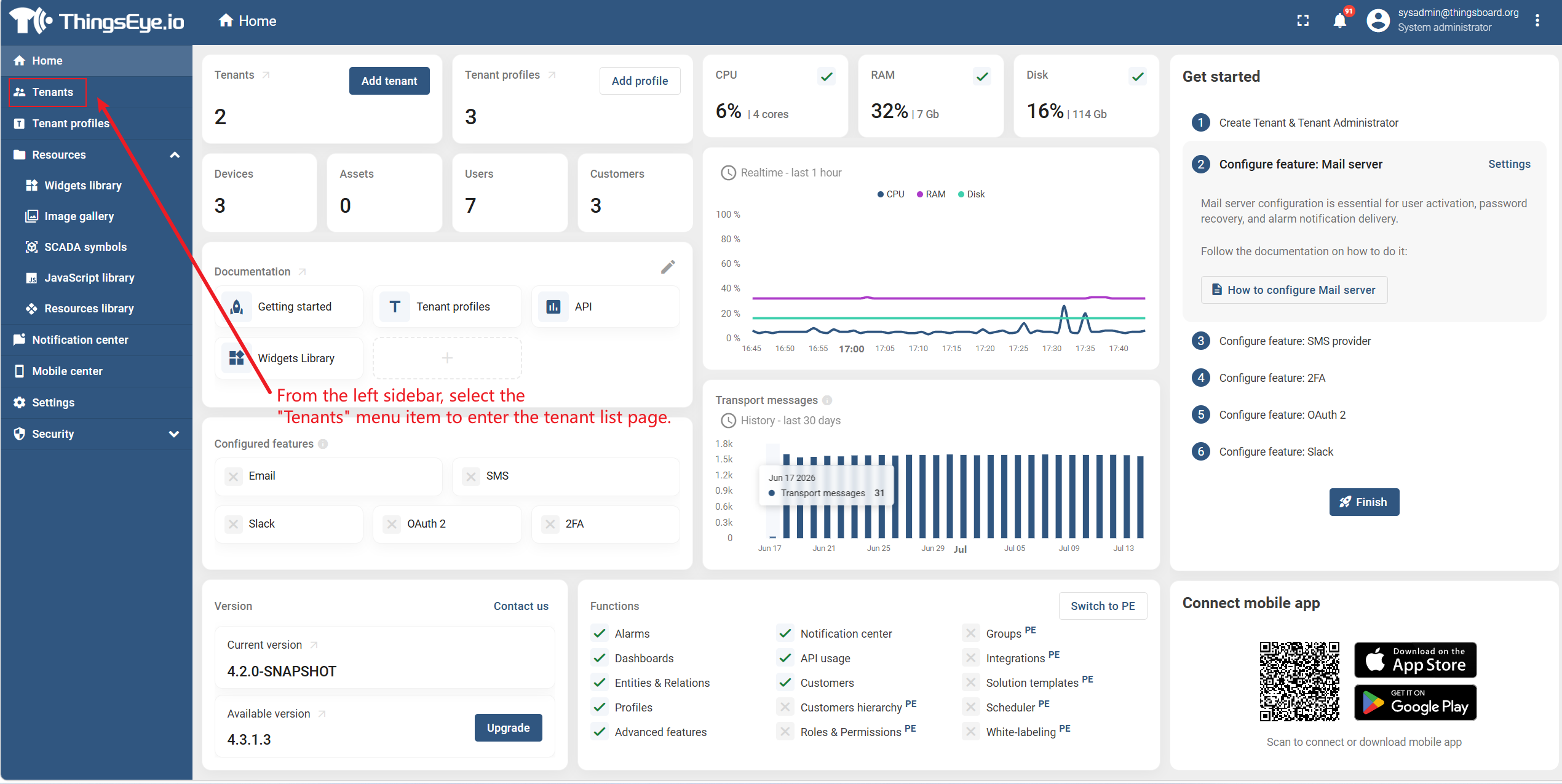
From the left sidebar, select the "Tenants" menu item to enter the tenant list page.
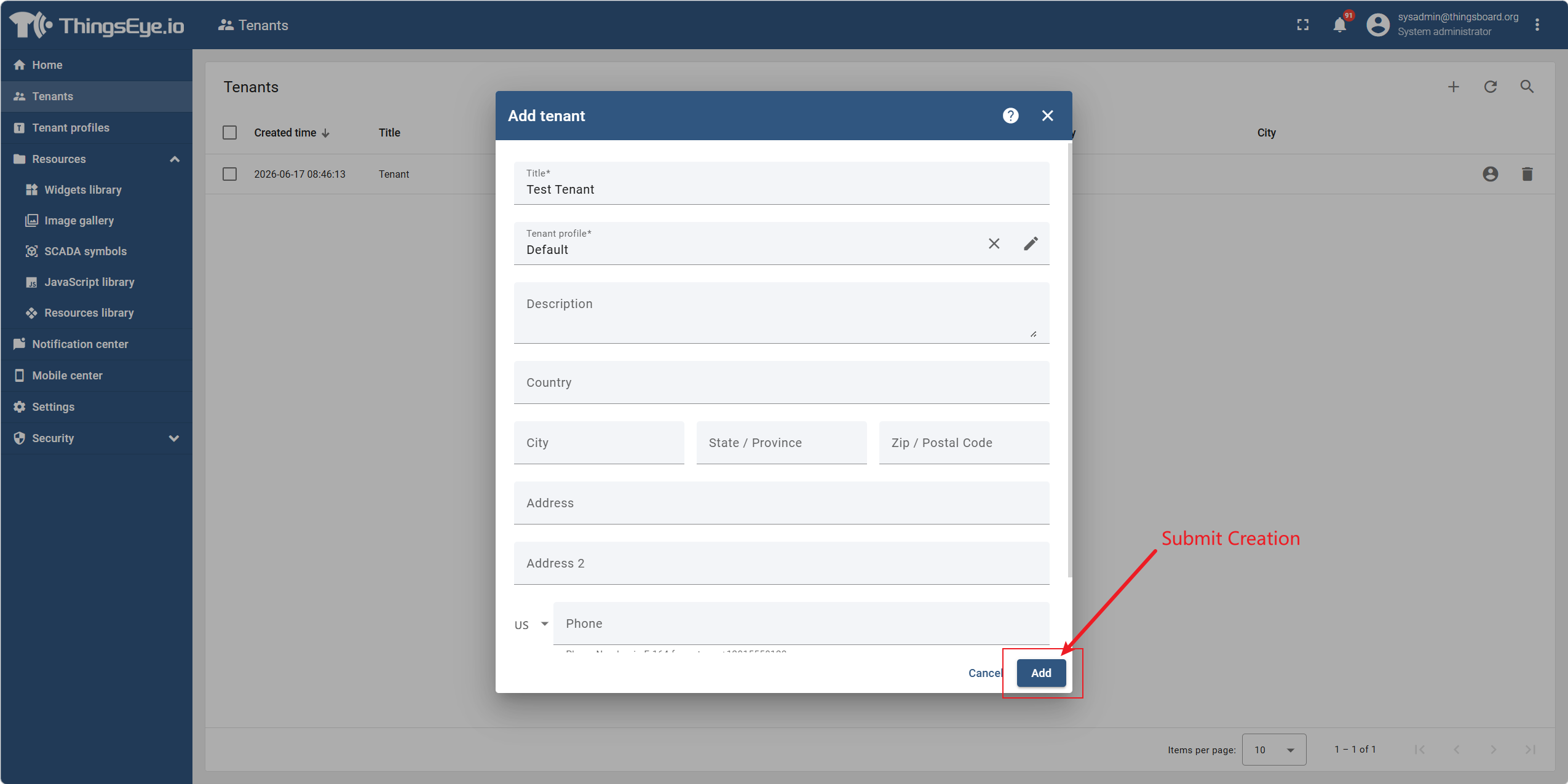
Step 2: Open the Create Tenant Dialog
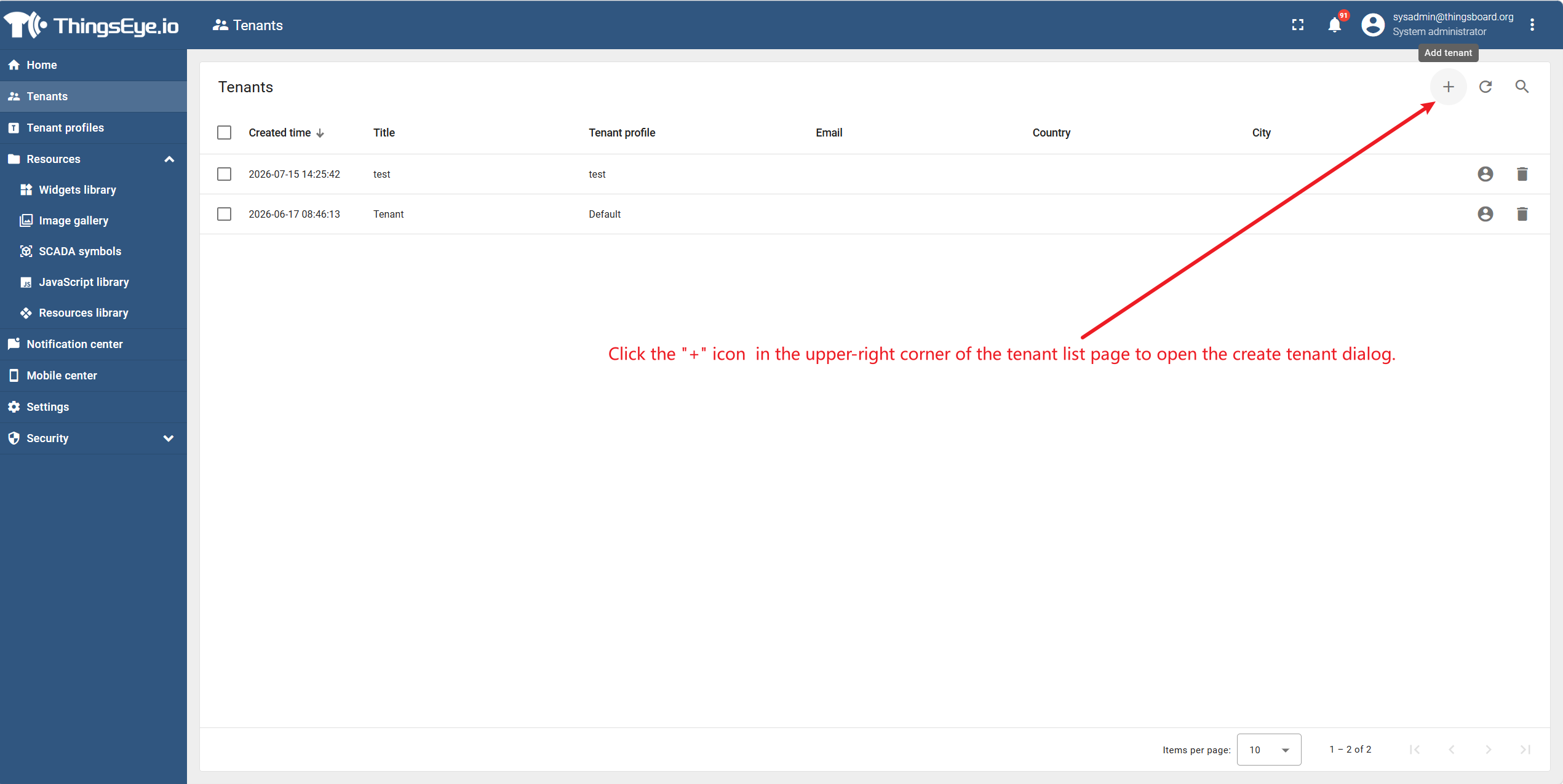
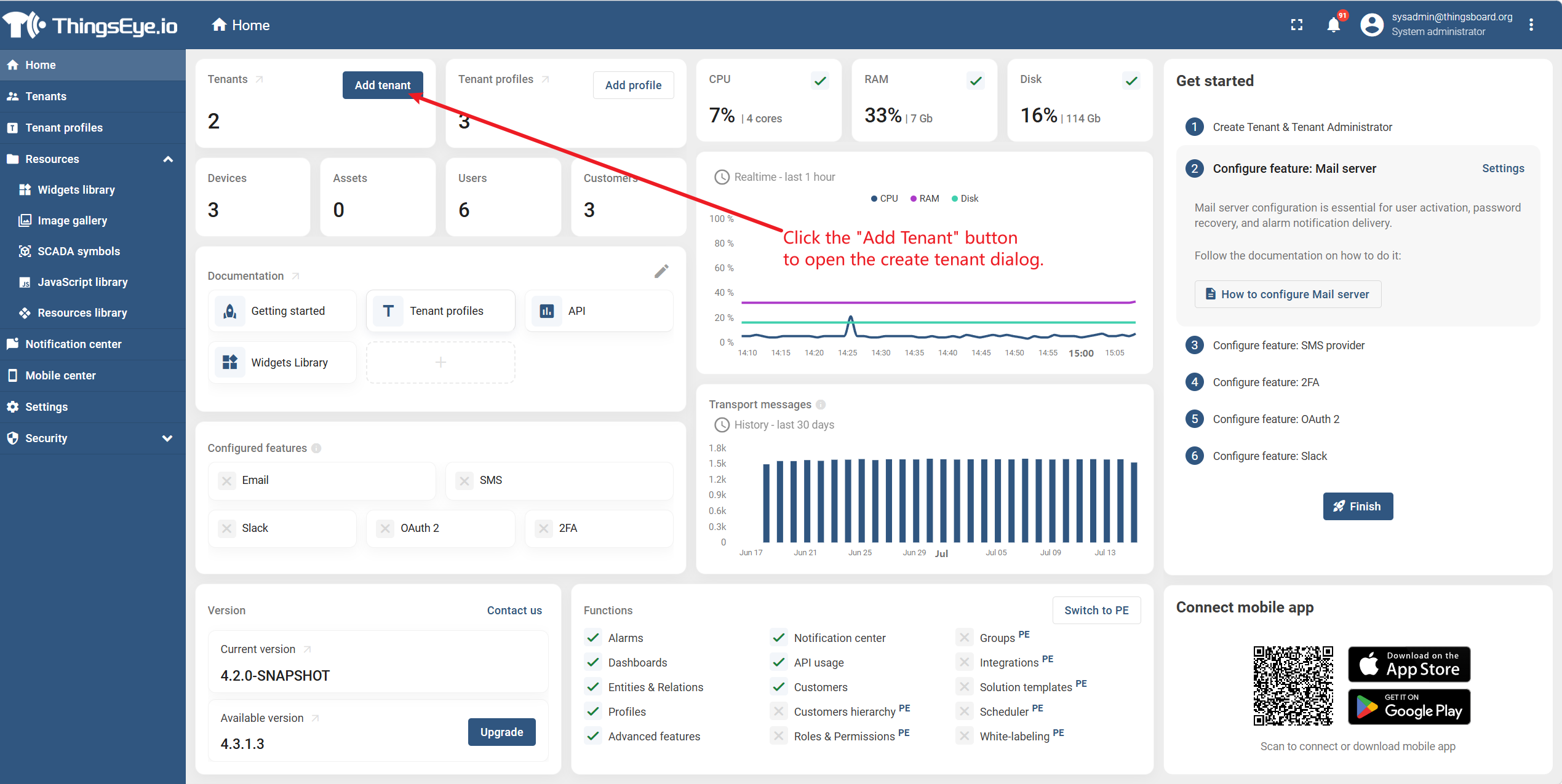
Click the "+" icon or the "Add Tenant" button in the upper-right corner of the tenant list page to open the create tenant dialog.
Step 3: Fill in Tenant Information
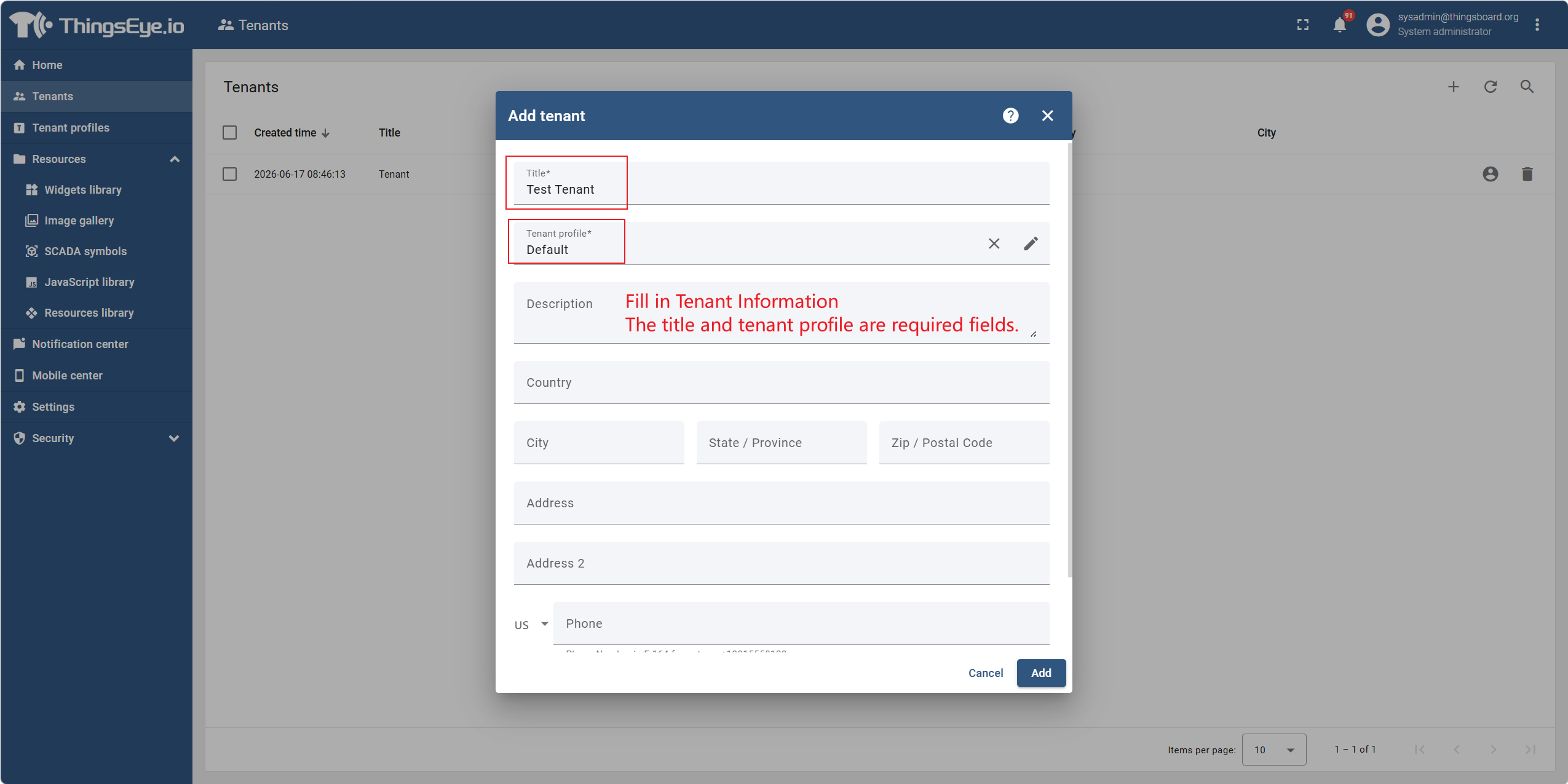
Fill in the following information in the create tenant dialog:
| Field | Description | Required |
|---|---|---|
| Tenant Name | The unique display name of the tenant, used for identification in the list | Yes |
| Tenant Profile | Select a previously created tenant profile, which determines the feature quotas and limits for the tenant (see Chapter 3. Tenant Profiles) | Yes |
| Contact Name | Primary contact person on the tenant side | No |
| Phone Number | Contact person's phone number | No |
| Contact person's email address | No | |
| Country | Country or region where the tenant is located | No |
| Address | Detailed address of the tenant | No |
| Additional Info | Other information to be noted, stored in JSON format | No |
Step 4: Submit Creation
After confirming the information is correct, click the "Add" button at the bottom of the dialog to submit.
Upon successful creation, the new tenant will appear in the tenant list.
Additional Field Notes
| Item | Description |
|---|---|
| Tenant Name Uniqueness | Tenant names must be unique across the platform and cannot duplicate existing tenant names. |
| Tenant Profile Purpose | The tenant profile determines the feature quotas for the tenant (e.g., max devices, max users, etc.). It can be changed after creation (see Section 2.2). |
| Tenant ID | The system automatically generates a unique tenant ID (UUID) upon creation for API calls and internal system identification. No manual entry is required. |